Titan Tool v7.0.0 Free Download – Full Features, Supported Devices & Setup Guide (2026)
Titan Tool v7.0.0 Free Download – Full Features, Supported Devices & Setup Guide (2026)
Titan Tool v7.0.0 is a powerful all-in-one mobile servicing software designed for Android technicians and advanced users. It combines multiple repair, maintenance, and device management features into a single interface, supporting a wide range of chipsets and brands.
Whether you're working on firmware flashing, system repair, or device diagnostics, Titan Tool provides a flexible environment for handling different Android service operations efficiently.
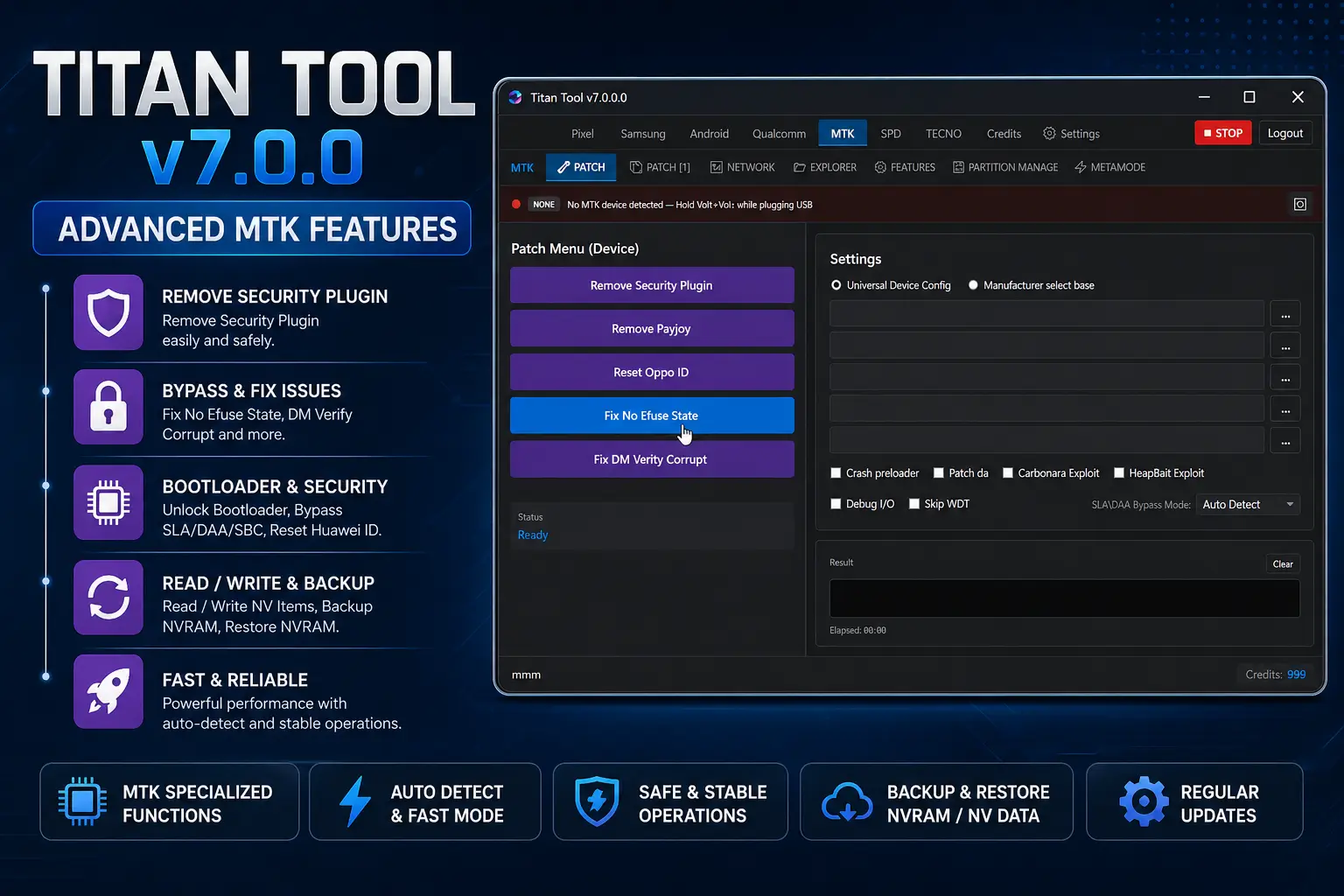
🔥 Key Highlights of Titan Tool v7.0.0
- Multi-brand support (Samsung, Qualcomm, MTK, SPD, TECNO)
- Advanced Android service functions in one tool
- Clean and easy-to-use interface
- Regular updates and improved compatibility
- Supports multiple connection modes (ADB, Fastboot, EDL, BROM)
⚠️ Important Notice: Some advanced features require server-based credits and may not function without official activation.
⚙️ Main Features Overview
📱 Samsung Module
- Firmware flashing via Odin protocol
- Device maintenance and repair tools
- Knox-related service options (limited)
🤖 Android General Functions
- Device information & diagnostics
- App management tools
- Screen recording & capture
- File transfer and backup/restore
- ADB & Fastboot utilities
🔧 Qualcomm Module
- Partition management (read/write/erase)
- QCN backup & restore
- Diagnostic mode tools
- EFS information handling
⚡ MediaTek (MTK) Module
- Bootloader operations
- Security-related fixes
- OTA and system repair tools
- Meta mode access
- NVRAM backup & restore
🧩 SPD / Unisoc Module
- Flashing and partition operations
- Basic device servicing tools
- Diagnostic functions
📲 TECNO Support
- ADB-based operations
- Factory reset & system tools
- Device mode management
📊 Supported Platforms & Devices
Titan Tool works with a wide range of Android environments:
- Samsung Devices (ADB / Download Mode / MTP)
- Qualcomm Devices (EDL 9008 / Diagnostic Mode)
- MediaTek Devices (Preloader / BROM / Meta Mode)
- SPD / Unisoc Devices
- TECNO Devices
- General Android Devices (ADB / Fastboot / Recovery)
🛠️ Installation Guide (Step-by-Step)
- Download the Titan Tool package and extract all files
- Open the setup file and install it as Administrator
- Do NOT launch the tool immediately after installation
- Extract the additional files included in the package
- Run the login/activation file as Administrator
- Complete the activation process
- Launch the tool from the desktop shortcut
- Enter login details and start using the tool
💡 Some offline functions may simulate credits, but online services require official access.
🚀 How to Use Titan Tool
- Install all required USB drivers on your PC
- Open Titan Tool with Administrator privileges
- Connect your device in the correct mode:
- ADB Mode
- Fastboot Mode
- EDL Mode
- BROM Mode
- Download Mode
- Select your device category:
- Samsung
- Qualcomm
- MTK
- SPD
- TECNO
- Choose the desired operation (flash, repair, backup, etc.)
- Click Start and wait for completion
- Reboot your device after the process finishes
⚠️ Important Disclaimer
This tool is shared for educational and testing purposes only.
Users are responsible for how they use it. Some functions may require official server access or paid credits.
📝 Disclaimer for Flagged Tools:
This tool has been tested using Kaspersky Antivirus. While it may be flagged as a potential threat, this is likely a false positive due to its functionality. We ensure that the tool is widely used and safe based on user feedback and testing. However, we recommend using it at your own discretion and scanning with your preferred security software for extra assurance.
🔧 How to Fix Internet Not Working After Using the Tool
If you face an issue where the internet stops working after using Titan Tool or similar software, it is usually caused by proxy settings being enabled automatically on your system.
Follow these steps to fix it:
🖥️ Step 1: Open Proxy Settings
- Go to Windows Settings
- Navigate to Network & Internet
- Click on Proxy
⚙️ Step 2: Disable Manual Proxy
- Scroll down to Manual Proxy Setup
- Find the option “Use a proxy server”
- Make sure it is set to OFF
✅ Step 3: Save Changes
- Apply the settings
- Close all windows
- Restart your browser or internet connection
🚀 Final Result
After disabling the proxy server, your internet connection should return to normal

<!-- wp:latest-posts /-->
🔗 Download Titan Tool v7.0.0.
يمكنك تنزيل الادوات من الرابط التالي:
Go to the Download Page
للذهاب لصفحة التحميل
يمكنك من خلال الضغط علي الزر التالي الذهاب لصفحة فحص وتحضير الروابط.
You can go to the link preparation and check page by pressing the button below.

PASS/كلمه السر :mxegyfrp
⚡ تنبيه قانوني | Legal Notice:
This tutorial is intended for educational purposes only. We do not endorse or support any illegal activities. Therefore, always ensure that you have the legal right to unlock and modify your device before proceeding with any FRP bypass or account unlocking methods.
هذا الدرس لأغراض تعليمية فقط. نحن لا نؤيد أو ندعم أي أنشطة غير قانونية. تأكد دائمًا من أنك تملك الحق القانوني في فتح وتعديل جهازك قبل المتابعة في أي طرق لتخطي حساب جوجل أو فتح الحسابات.
للمزيد من المعلومات وحل المشكلات الأخرى، يمكنك زيارة موقعنا الرسمي
Your support truly means the world to me! Whether it's by sharing, subscribing, watching ads, or contributing in any way, every little bit plays a crucial role in helping me create more content. Without your support, this journey wouldn't be possible. So, I want to take a moment to express my sincere thanks for being a part of this exciting adventure! Together, we can continue to grow and achieve even more. ❤️
<!-- wp:social-link {"url":"https://www.youtube.com/channel/UCA3iM2B4lV7pLfNBUWL5DyA?sub_confirmation=1","service":"youtube"} /-->
<!-- wp:social-link {"url":"https://www.instagram.com/matrix_egy/","service":"instagram"} /-->
<!-- wp:social-link {"url":"x.com/MatrixEgyFRP","service":"x"} /-->
<!-- wp:social-link {"url":"https://www.pinterest.com/MustaphamahmoudMx/","service":"pinterest"} /--></ul> <!-- /wp:social-links -->

Top Free Mobile Repair Tools & Mobile Repair Guides 2025
Discover More Free Mobile Repair Tools of 2025, which include a range of advanced technical solutions, Mobile Repair Guides. These tools offer the ability to unlock phones,bypass Google account verification, fix IMEI and serial numbers, as well as repair network issues and revive dead boot devices. Whether you're looking to fix your personal device or need professional tools to assist with mobile repairs, you'll find a collection of free tools perfect for all of this and more. Read more about each tool to get detailed instructions on how to use them properly. These tools cater to the needs of all users, whether beginners or professionals, and support most brands like Samsung, Huawei, Xiaomi, Oppo, and others.
<!-- wp:html --> </div> <!-- /wp:html -->


Comments
Post a Comment