Redmi 9/9 Prime (Lancelot) Fixing "The System has been Destroyed"
Fixing “The System has been Destroyed” on Redmi 9/Redmi 9 Prime (Lancelot) – A Complete Guide
Introduction
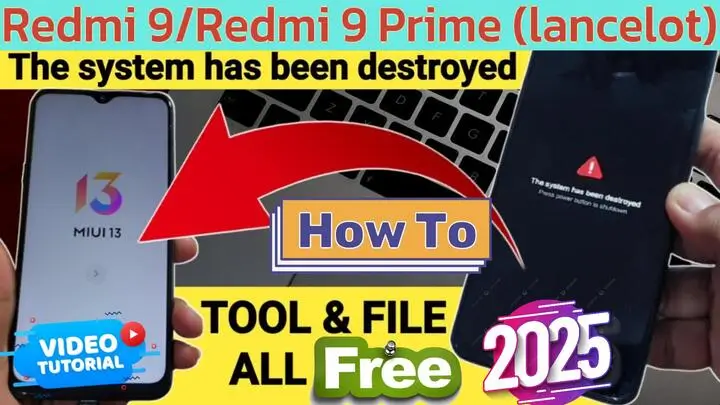
Are you struggling with the dreaded “The System has been Destroyed” error on your Redmi 9 / Redmi 9 Prime (Lancelot)? If your device is stuck in a boot loop or refuses to turn on, don’t panic! In this guide, we will walk you through effective solutions to fix this issue 100% free. By following our step-by-step instructions and using the right tools, you can restore your device effortlessly.
Common Causes of “The System has been Destroyed”
To effectively resolve this issue, it’s essential to understand the common causes. Here are some reasons why your Redmi 9 / Redmi 9 Prime might be facing this problem:
- Failed Software Update: If an update process is interrupted, the device may become unbootable.
- Corrupt Firmware Flashing: Installing incorrect or corrupted firmware can damage the system partition.
- Custom ROM Issues: Installing an unverified custom ROM can lead to severe boot failures.
- Malware or Viruses: Harmful software may corrupt system files, preventing the phone from booting.
- Hardware Malfunctions: NAND or eMMC failures can cause system errors and boot loops.
Solution: Fixing “The System has been Destroyed” on Redmi 9/9 Prime
Method: Fastboot Mode + Flashing Official Firmware
Requirements:
Before you proceed, make sure you have the following:
- A Windows PC
- watch full Video Step by Step
- A compatible USB Cable
- Flash Tool (Miracle, AUP, or Griffin Tool)
- Official Redmi 9 (Lancelot) Firmware
- ADB & Fastboot Drivers Installed
Steps to Fix Using a FREE Flash Tool:
- Download the Official Firmware: Get the latest Fastboot ROM for your phone from a trusted source.
- Install Xiaomi USB Drivers: Ensure your PC recognizes your device in Fastboot mode/MTKBROM.
- Unlock the Bootloader:
- Boot into Fastboot Mode:
- Power off the device.
- Press and hold Volume Down + Power until the Fastboot screen appears.
- Open the Flash Tool: Select the downloaded firmware.
- Start the Flashing Process: Click “Flash” and wait for the procedure to complete.
- Reboot Your Device: Once flashing is done, restart the phone and check if the issue is resolved.
Alternative Solutions
If the above method does not work, try these alternative solutions:
- Use a Different USB Cable or Port: Faulty cables or ports may interrupt the flashing process.
- Check for Battery Issues: A drained or faulty battery can prevent successful flashing.
- Use Custom TWRP Recovery: Restoring the system partition via TWRP can help in some cases.
- Contact Xiaomi Support: If nothing works, professional support may be required.
Preventing Future Boot Issues
To avoid encountering this issue again, follow these preventive measures:
- Always use official firmware for updates.
- Avoid installing unverified custom ROMs.
- Ensure your battery is adequately charged before flashing.
- Create backups before modifying system files.
Conclusion
By carefully following this guide, you can successfully fix the “The System been Destroyed” error on your Redmi 9 / 9 Prime . If you found this tutorial helpful, don’t forget to share it with others who might be facing similar issues. Also, leave a comment below if you have any questions or need further assistance!
انقر فوق السهم لإظهار الترجمة باللغة العربيه
إصلاح مشكلة “System Destroyed” على Redmi 9 / 9 Prime
المقدمة
هل تواجه مشكلة “The System has been Destroyed” على هاتف Redmi 9 / 9 Prime ؟ إذا كان جهازك عالقًا في وضع التمهيد (Bootloop) أو لا يعمل نهائيًا، فلا تقلق! هذا الدليل سيساعدك في إصلاح هذه المشكلة مجانًا بنسبة 100%، باستخدام أفضل الأدوات المتاحة مع شرح تفصيلي خطوة بخطوة.
الأسباب الشائعة لمشكلة “System Destroyed”
- فشل تحديث البرنامج: إذا انقطع التحديث أثناء التثبيت، فقد يصبح الجهاز غير قادر على الإقلاع.
- تفليش (Flashing) نظام تالف أو غير متوافق: استخدام فلاشات غير رسمية أو تالفة قد يؤدي إلى تعطل ملفات النظام.
- مشاكل مع الـ ROM المخصص: تثبيت نظام معدل (Custom ROM) بدون التحقق من التوافق يمكن أن يؤدي إلى مشاكل كبيرة في الإقلاع.
- إصابة الجهاز بفيروسات أو برمجيات ضارة: بعض البرامج الضارة قد تؤدي إلى تلف ملفات النظام ومنع تشغيل الهاتف.
- أعطال في الهاردوير: في بعض الحالات، قد تتسبب مشاكل في NAND أو eMMC في فشل تشغيل الهاتف.
الحل: إصلاح مشكلة “System Destroyed” على Redmi 9 / 9 Prime
1- استخدام وضع Fastboot + تفليش الروم الرسمي
المتطلبات:
- جهاز كمبيوتر يعمل بنظام Windows
- كابل USB أصلي
- أداة فلاش (Miracle / aup / Griffin Tool)
- البرنامج الثابت الرسمي (Firmware) لهاتف Redmi 9 (Lancelot)
- تثبيت ADB & Fastboot Drivers على الكمبيوتر
الخطوات باستخدام أداة الفلاش المجانية:
- تحميل الروم الرسمي: قم بتنزيل أحدث إصدار من Fastboot ROM الخاص بـ Redmi 9 / 9 Prime من مصدر موثوق.
- تثبيت تعريفات Xiaomi USB: تأكد من أن الكمبيوتر يتعرف على الهاتف في وضع Fastboot أو mtkbrom.
- فتح البوتلودر (Unlock Bootloader).
- الدخول إلى وضع Fastboot:
- قم بإيقاف تشغيل الهاتف.
- اضغط مع الاستمرار على زر خفض الصوت + زر الطاقة حتى يظهر شعار Fastboot على الشاشة.
- فتح أداة الفلاش وتحديد الروم الرسمي الذي تم تحميله مسبقًا.
- الضغط على “Flash” وانتظار انتهاء العملية.
- بعد اكتمال الفلاش، أعد تشغيل الجهاز واستمتع بالهاتف دون مشاكل.
2- حلول بديلة إن لم تنجح الطريقة الأولى
- جرب كابل USB أو منفذ مختلف في الكمبيوتر.
- تحقق من مشاكل البطارية، أحيانًا قد تكون البطارية سبب المشكلة.
- استخدم ريكفري TWRP مخصص لاستعادة قسم النظام.
- إذا استمرت المشكلة، تواصل مع دعم Xiaomi الرسمي للحصول على المساعدة.
نصائح لتجنب مشاكل الإقلاع مستقبلاً
✅ استخدم دائمًا البرامج الثابتة (Firmware) الرسمية عند التحديث.
✅ لا تقم بتثبيت ROM معدل غير موثوق بدون التحقق من التوافق.
✅ تأكد من شحن البطارية بالكامل قبل عملية التفليش.
✅ قم بإنشاء نسخة احتياطية من بياناتك قبل تعديل ملفات النظام.
الخاتمة
من خلال اتباع هذا الدليل، يمكنك بسهولة إصلاح مشكلة “System Destroyed“ على هاتفك Redmi 9 / 9 Prime . إذا وجدت هذه المقالة مفيدة، لا تنس مشاركتها مع الآخرين، وإذا كان لديك أي استفسار، اترك تعليقًا وسنساعدك! 🚀
Download Redmi 9/9 Prime Fixing “System Destroyed“ Tools & Files
Go to the Download Page
للذهاب لصفحة التحميل
يمكنك من خلال الضغط علي الزر التالي الذهاب لصفحة فحص وتحضير الروابط.
You can go to the link preparation and check page by pressing the button below.

PASS/كلمه السر :mxegy frp
⚡ تنبيه قانوني | Legal Notice:
This tutorial is intended for educational purposes only. We do not endorse or support any illegal activities. Therefore, always ensure that you have the legal right to unlock and modify your device before proceeding with any FRP bypass or account unlocking methods.
هذا الدرس لأغراض تعليمية فقط. نحن لا نؤيد أو ندعم أي أنشطة غير قانونية. تأكد دائمًا من أنك تملك الحق القانوني في فتح وتعديل جهازك قبل المتابعة في أي طرق لتخطي حساب جوجل أو فتح الحسابات.
للمزيد من المعلومات وحل المشكلات الأخرى، يمكنك زيارة موقعنا الرسمي
Your support truly means the world to me! Whether it’s by sharing, subscribing, watching ads, or contributing in any way, every little bit plays a crucial role in helping me create more content. Without your support, this journey wouldn’t be possible. So, I want to take a moment to express my sincere thanks for being a part of this exciting adventure! Together, we can continue to grow and achieve even more. ❤️

Top Free Mobile Repair Tools & Mobile Repair Guides 2025
Discover More Free Mobile Repair Tools of 2025, which include a range of advanced technical solutions, Mobile Repair Guides. These tools offer the ability to unlock phones,bypass Google account verification, fix IMEI and serial numbers, as well as repair network issues and revive dead boot devices. Whether you’re looking to fix your personal device or need professional tools to assist with mobile repairs, you’ll find a collection of free tools perfect for all of this and more. Read more about each tool to get detailed instructions on how to use them properly. These tools cater to the needs of all users, whether beginners or professionals, and support most brands like Samsung, Huawei, Xiaomi, Oppo, and others.


Comments
Post a Comment